How to Redact Sensitive Information in PDF Documents: The Ultimate 2026 Guide
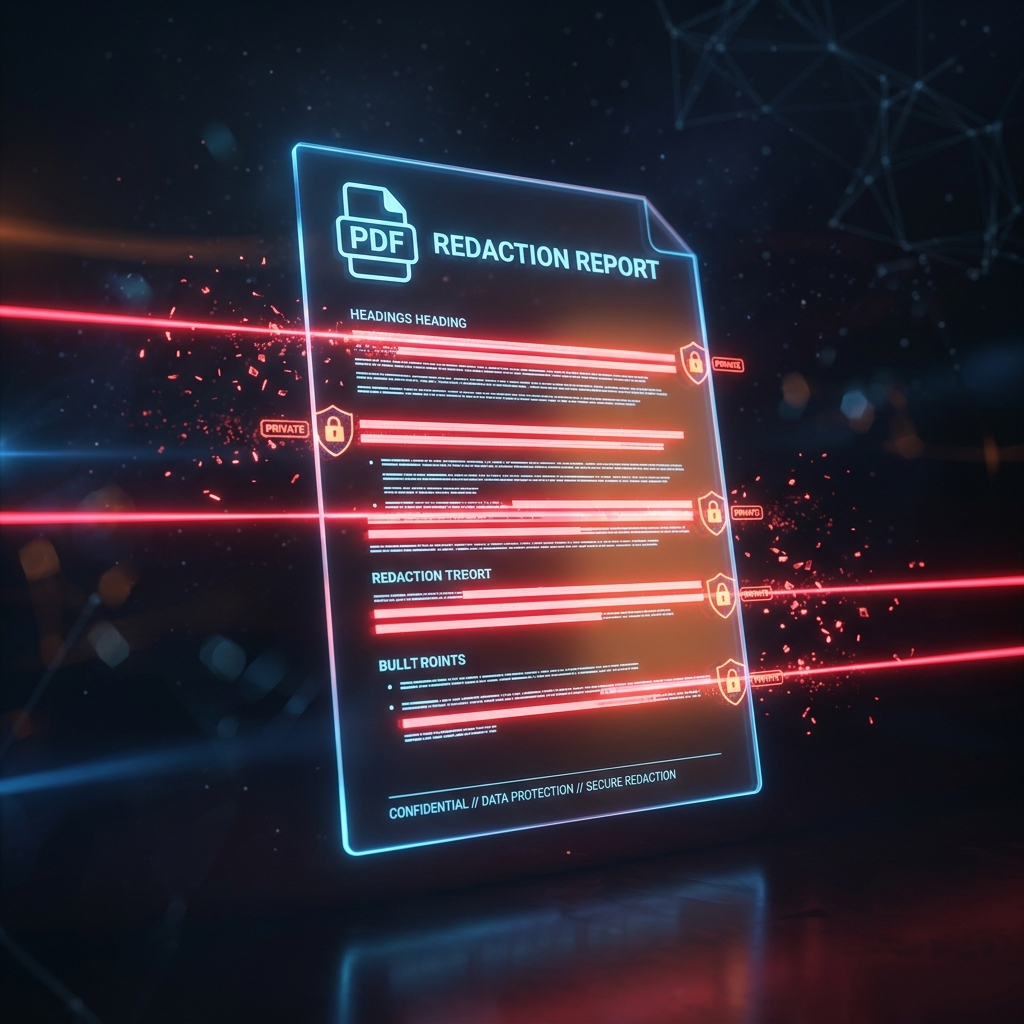
In an increasingly digitized world, the ability to securely share documents is paramount. From medical records and legal contracts to financial statements and government ID scans, we constantly transmit files packed with highly sensitive Personally Identifiable Information (PII). When sharing these documents, the need to obscure or hide specific information—a process known as redaction—becomes critical.
However, the vast majority of people perform redaction incorrectly. What seems like a safe black box over a Social Security Number can often be removed with a single click, leading to catastrophic data breaches, identity theft, and severe legal liabilities.
In this massive, comprehensive guide, we are going to dive deep into exactly how PDF files work under the hood, why traditional "redactiom" methods are dangerously flawed, the severe risks of using online cloud-based PDF tools, and how you can achieve military-grade, permanent PDF redaction entirely for offline and for free.
Part 1: The Illusion of Security—Why Black Highlighting Fails
To understand how to redact a PDF properly, you first need to understand what a PDF actually is. PDF (Portable Document Format) is not a flat image like a JPEG or PNG. It is a highly complex, layered container format based on PostScript.
When you look at a PDF, you are looking at several distinct, separate layers rendered simultaneously by your viewer:
- The Image Layer: Background images, scanned graphics, and vector shapes.
- The Text Layer: The actual machine-readable characters (
A-Z,0-9) that you can highlight, copy, and search. - The Annotation Layer: Geometric shapes, highlights, comments, and sticky notes that sit on top of the text and images.
The "Draw a Box" Mistake
The most common mistake people make when attempting to redact a PDF is using a basic PDF reader (like Apple Preview or Adobe Reader) to draw a black rectangle over sensitive text, or using a black highlighter tool to color over the words.
Visually, the document appears secure. The text is totally obscured by the black shape. You save the file and email it off.
The Reality: All you have done is placed a shape on the Annotation Layer over the text on the Text Layer. The underlying text has not been modified or deleted.
Any recipient of that file can simply:
- Open the PDF and click the "Select Text" tool.
- Drag their cursor over the black box.
- Copy the invisible text beneath it.
- Paste it into a Notepad document, instantly revealing your Social Security Number.
- Alternatively, they can simply click on the black box and hit the
Deletekey on their keyboard, removing the annotation layer entirely.
This error has been responsible for massive, real-world data leaks. Major corporations, law firms, and even government agencies have accidentally published "redacted" PDFs where the sensitive data was instantly retrievable by journalists and malicious actors because they merely placed shapes over the text instead of scrubbing the data structure.
Part 2: The Dangers of Cloud-Based PDF Redaction
Realizing that simple black boxes don't work, many users turn to Google and search for "redact PDF permanently." They are immediately greeted by hundreds of free, online PDF editors.
These websites promise to correctly redact your document. But using them introduces an entirely new, potentially worse vector for severe data leaks: The Cloud.
1. Loss of File Custody
To use an online PDF redactor, you must hit the "Upload" button. The moment you do this, your highly sensitive document leaves your computer and is transmitted over the internet to a remote server owned by a third-party company. You no longer control that file.
2. The Honeypot Problem
Online PDF editors sit on massive troves of newly uploaded, highly sensitive data. This makes them prime targets for hackers. If the company's servers are breached, the hackers gain access to thousands of un-redacted documents waiting in the server's processing queue or temporary storage arrays.
3. Data Harvesting and Shadow Profiles
Many "free" online services are free because you are the product. They may scan your uploaded documents for valuable datasets—skimming email addresses, contact lists, financial metrics, and company names to build and sell data profiles to marketing agencies or training data to AI corporations.
4. Lingering Metadata
Even if an online tool claims to delete your file after 2 hours, the metadata (who uploaded it, where they uploaded it from, IP address, file size, creation date) is almost certainly logged in their analytics databases permanently.
For true security, highly sensitive documents simply cannot be uploaded to random websites.
Part 3: The Golden Standard—True Local Redaction
If drawing black boxes doesn't work, and online servers are too risky, what is the solution?
True Redaction via Local Client-Side Processing.
True redaction requires opening the raw structural code of the PDF file, locating the exact byte characters that make up the sensitive words, and permanently deleting them from the file's source code, before rendering a structural black box into the base layer (not the annotation layer) of the file.
The only safe way to do this is by executing the redaction algorithms directly on your own computer’s CPU, ensuring the file never leaves your local hardware.
Enter LocalPDF's Native App Architecture
This is precisely why we built LocalPDF. By compiling complex C++ PDF processing libraries into WebAssembly (Wasm), LocalPDF brings enterprise-grade document manipulation directly into your web browser.
When you use the LocalPDF Redaction tool, your file is loaded into your browser's local memory cache. It is never transmitted to a server. You get the convenience of a modern web application with the military-grade security of an offline desktop program.
Part 4: Step-by-Step Guide to Securely Redacting PDFs on LocalPDF
Here is exactly how you can permanently and safely redact your sensitive files in seconds.
Step 1: Access the Tool
Navigate to the LocalPDF Redact tool. Because the application consists of static progressive web app files, it loads instantly. Once loaded, you can even disconnect from Wi-Fi to prove no data is being sent!
Step 2: Load Your Document
Drag and drop your sensitive PDF file into the dropzone area. The file is instantly parsed locally by your device's RAM. There is zero upload time because there is no upload happening.
Step 3: Select the Redaction Areas
The document will render cleanly on your screen. You will have access to the redaction selection tool.
- You can click and drag to highlight specific sentences.
- You can draw regional boxes over entire paragraphs or sensitive images.
As you mark areas, they will appear highlighted, indicating they are queued for structural deletion.
Step 4: Execute the Redaction Algorithm
Once you have marked all PII, SSNs, bank accounts, and sensitive addresses, click the "Apply Redaction" button.
Instantly, our local WebAssembly engine rewrites the PDF file structure.
- It scans the document's character arrays and permanently deletes the text nodes that fall within your highlighted coordinates.
- It strips out embedded fonts associated with those characters to prevent advanced linguistic analysis.
- It paints permanent, flattened black geometric vectors directly into the base structure of the file.
Step 5: Save the Secured File
Click download to save the new file. If you attempt to open the new file and drag your cursor over the black boxes, you will find absolutely nothing to highlight. The text is gone forever. Your document is now highly secure and ready for public distribution or email transmission.
Part 5: Comprehensive PDF Redaction FAQs
Q: Does redaction reduce the file size? A: Usually, yes! Because you are permanently deleting text nodes and embedded data streams, the resulting PDF is often slightly smaller than the original.
Q: Can a redacted PDF ever be un-redacted? A: If redacted properly using structural deletion (like LocalPDF does), no. The data is entirely gone. However, if you simply used an annotation tool to draw a black box, a recipient can easily remove it. Always test your redacted PDFs by trying to copy the text beneath the black box before sending them!
Q: Does redacting a PDF remove the hidden metadata? A: No, redaction targets the visual and textual data inside the document. PDFs often contain hidden metadata such as the Author name, Creation Date, software used to create the document, and revision histories. If you need complete anonymity, you must also use a PDF Sanitization Tool to permanently strip the metadata header dictionaries from the file!
Q: What if my PDF is a flattened image (like a scanned document)? A: If a PDF is just a scanned photograph with no OCR text layer, drawing a black box and then flattening the file again is sufficient, because there is no underlying text code to steal. When you use the LocalPDF redactor on an image-only PDF, we will permanently bake the black box into the image pixels themselves.
Conclusion
Securing your digital footprint is not a luxury; it is a necessity. Data breaches ruin lives, and compromised PDFs are one of the most common leak vectors.
By understanding how PDF layers function and avoiding the extreme risks of uploading confidential data to cloud-based apps, you are already ahead of the curve. Trust in local, client-side processing to ensure your data remains permanently under your control. Stay secure, stay local.
Start redacting your documents safely right now with LocalPDF.
Ready to take control of your documents?
Use LocalPDF to merge, compress, and edit PDFs — 100% offline, 100% private.
Try LocalPDF NowHow to Deskew and Straighten Scanned PDFs Automatically: The Ultimate Guide
Fix crooked document scans permanently. Learn the technical causes behind skewed PDFs, why it destroys OCR functionality, and how to deskew PDFs safely and securely straight from your browser.
How to Verify PDF File Integrity Using SHA256 Checksums: A Complete Guide
Has your PDF file been tampered with? Learn exactly what a cryptographic checksum is, how hash verification works, and how to verify if a crucial document retains its original structural integrity.